FILE STORAGE & BACKUPS · 9 MIN READ
Are External Drives Reliable for Long-Term File Storage?
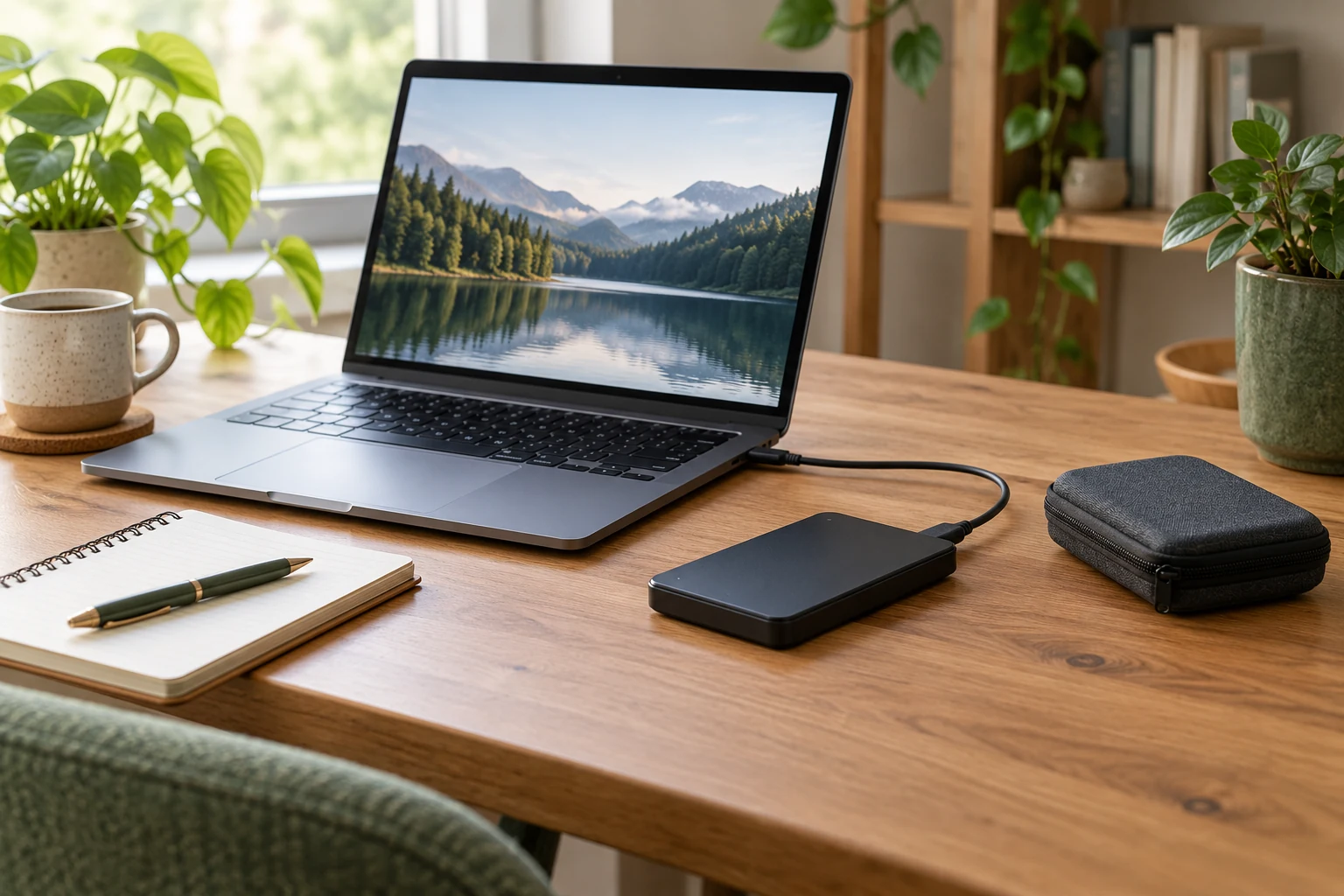
External drives can be useful for long-term file storage, but no single drive should be the only home for important work. Their value comes from how you use them: keeping separate copies, checking that files still open and moving your archive to suitable replacement storage before access becomes a problem.
For a solo entrepreneur, this is about protecting the work behind your income. A missing client folder, damaged course video or lost website package can interrupt your business. You do not need an elaborate IT department to reduce that risk. You need a simple routine that you can maintain.
What does “long-term storage” actually mean?
There are three different jobs that people often describe as storage. Working storage holds the files you edit regularly. A backup gives you another copy to recover when something goes wrong. An archive preserves material you no longer change often but may need later.
An external drive can perform any of these jobs. The important question is whether another copy exists. If you move old projects from your laptop onto a drive and delete the originals, you have created an archive with one copy. You have freed up space, but you have not created a backup.
Think about a finished ebook. The PDF matters, but so do the editable manuscript, cover artwork and supporting worksheets. If you want to update the product next year, those source files may be much harder to recreate than the final download.
How long can an external drive last?
There is no dependable countdown that tells you when your individual drive will fail. Age, use, handling, storage conditions and the particular device all matter. A drive working perfectly today is not a promise that it will work when you next need it.
A warranty is also different from a guarantee that your files will remain recoverable. Read the actual warranty and any recovery-service terms rather than assuming that a replacement device would bring your work back.
For a business owner, a better question is: “If this drive failed this afternoon, where would I recover my files?” A clear answer is more useful than relying on a supposed universal lifespan. Review your storage regularly and plan replacements as part of maintaining the business.
HDD or SSD: does the type of drive change the answer?
A hard disk drive, or HDD, uses moving mechanical components. A solid-state drive, or SSD, uses flash memory and has no moving parts. This changes their characteristics, but neither technology removes the need for another copy.
| Drive type | Practical consideration | Long-term implication |
|---|---|---|
| External HDD | Handle carefully, particularly while operating. | Mechanical or electronic failure can make files inaccessible. |
| External SSD | No moving parts, but still vulnerable to electronic failure, loss and deletion. | Do not treat it as permanent, maintenance-free storage. |
| Either type | Check compatibility, capacity and your backup process. | Maintain multiple copies and test recovery. |
Choose a drive for the job you need it to do. Carrying active video projects between locations is a different task from keeping an additional copy of completed documents at home. Avoid choosing solely on a claim that one technology is “safe forever”.
Where the Seagate Portable 2TB fits
The Seagate Portable 2TB external hard drive on our Recommended Products page is an example of a device you could use for a separate local copy of your work. Our product introduction explains how it fits into a solo entrepreneur’s backup routine.
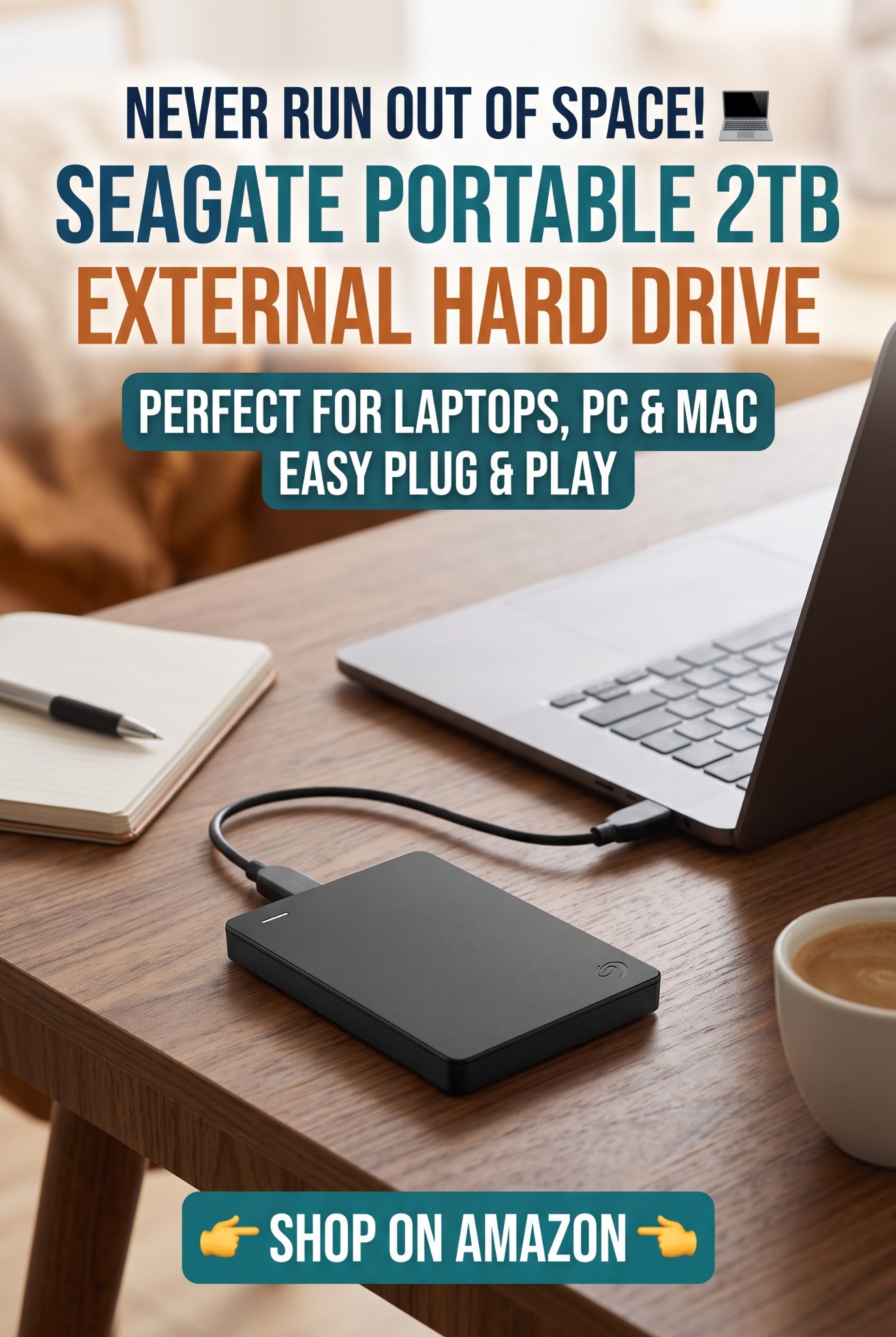
It may be relevant if you are building a digital asset library, keeping website packages or saving the originals behind your downloadable products. Check the exact Amazon listing for the selected capacity, connector and operating-system requirements. Mac use may require reformatting, and formatting erases existing contents.
Buying a drive does not automatically create a working backup system. You still need to copy the right folders or configure suitable backup software, check that the process succeeds and keep another copy elsewhere. This reference is not a claim that we have tested this individual drive’s lifespan.
Find Out More On Amazon Ad · Affiliate link
Build a simple system with separate copies
The 3-2-1 approach is a useful starting point: keep three copies of important data, on two types of storage, with one copy off-site. For a small home business, that might mean working files on your computer, a local external-drive backup and an independent cloud backup.
Check what your cloud service actually does. A synchronised folder can propagate a mistaken deletion or unwanted change. Version history and deleted-file recovery may help, but their retention periods and settings matter. “In the cloud” does not automatically mean recoverable indefinitely.
For local backups, safely eject and disconnect the drive after the backup finishes. An offline copy reduces exposure to attacks that can reach connected storage. CISA recommends offline backups and regular recovery testing. Keep a separate off-site copy for incidents that could affect everything in your home.
Back up the files that would be hardest to replace
Start with your most valuable work rather than trying to tidy every folder first. For an online business, useful priorities include:
- Editable product files, artwork and the finished downloads customers receive.
- Client work, project notes and delivery records.
- Website source files and exports needed to rebuild the site.
- Original photographs, video recordings and reusable marketing assets.
- Business documents and essential account-recovery information, stored securely.
If you use an online design or publishing platform, check whether the important originals can be exported. A screenshot is rarely a substitute for an editable project. Keep a short note explaining which application opens each unusual file type.
Our guide to digital products beginners can create offers examples of assets worth protecting. Backing up the finished product and the working material makes later improvements much easier.
Use a routine that matches your working week
The following is a suggested routine, not a guarantee or a universal technical standard. Adjust it to how much new work you create and how much you could afford to lose.
- After important work: save the project and run or confirm its backup. Do not postpone a valuable client delivery until a monthly tidy-up.
- Weekly: review backup results and check that new folders are included. A successful job can still omit a folder you never selected.
- Monthly: restore a sample into a separate test folder and open it. Include more than one file type.
- Yearly: review the archive, access credentials, available space and whether older files still open in your current software.
Keep a brief record of the last successful check. A dated note such as “restored workbook, cover and website ZIP” provides more useful reassurance than simply seeing a drive appear on your computer.
Look after the drive—and the archive itself
Follow the manufacturer’s storage and handling instructions. Keep the drive somewhere dry and protected from knocks, avoid pulling on cables and use the operating system’s eject process before unplugging it. Store the appropriate cable with it so that the archive remains straightforward to access.
Use clear folder names and dates. For example, “Garden-Planner-2026-10-Final” is easier to identify later than “new-final-final2”. Keep original files alongside useful exports in widely supported formats where practical, rather than replacing the originals.
The National Archives of Australia describes digital preservation as ongoing maintenance. It recommends checking files and considering format changes. When replacing storage, verify the new copies before retiring the old ones. A copied folder name alone does not prove that every file transferred correctly.
What if a drive starts behaving strangely?
Repeated disconnections, read errors, missing files or unusual noises deserve attention. They do not identify one specific fault, but they are reasons to avoid trusting that device as your only copy.
If you already have a verified backup, recover your work from that copy and investigate the suspect drive separately. If it contains the only copy of irreplaceable material, stop using it and consider professional recovery advice before formatting it or running repair tools. Seagate’s data-loss guidance advises ceasing use of a device that needs recovery.
Protecting your progress
External drives are useful tools for keeping control of your files. Long-term reliability comes from a maintained system of copies, checks and replacements, rather than faith in one device.
Start today with one important project: identify the working files, make an additional copy and prove that you can open it. Then give that routine a regular place in your week. It is a practical way to protect the time you have already invested in building your online income.
Frequently asked questions
Can I leave an external drive in a drawer for years?
You can store it disconnected, following its storage specifications, but do not assume its contents will remain accessible without checks. Keep another copy and review the archive periodically.
Is an external drive better than cloud backup?
They solve different problems. A local drive gives you a nearby copy; an independent off-site backup protects against incidents affecting your home. Using both can reduce dependence on either one.
Does plugging in a drive automatically back up my files?
No. You must copy files yourself or configure compatible backup software. Check which folders are included and confirm that a backup actually completed.
Will 2TB be enough for my business?
Measure your current files and allow for growth and retained backup versions. Documents and large video projects have very different storage needs. Capacity alone does not determine reliability.
Should I replace a drive after a fixed number of years?
There is no universal safe replacement date for every device. Review its condition, compatibility and importance regularly, and maintain recoverable copies regardless of its age.
Keep building your online business
Once your work is protected, return to the next manageable step in your project. If you are exploring the online-income system featured on Streamline Income, read its offer and terms carefully and decide whether it fits your needs and budget.
Explore the Featured System — AdAffiliate link. This is separate from the backup tools discussed above; income is not guaranteed.